Sky TV Player Not Starting on Laptop
Estimated reading time: 12 minutes.
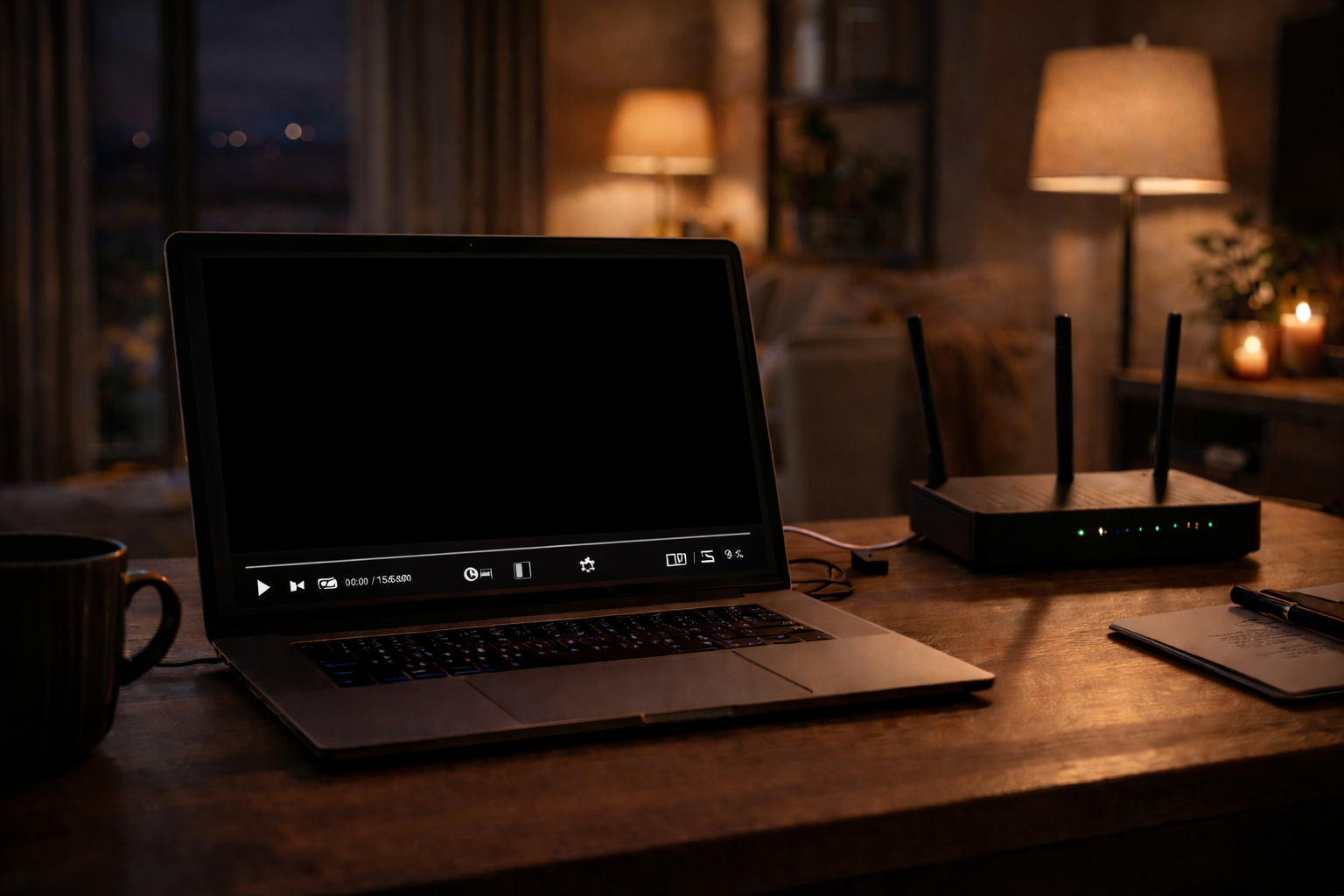
Sky TV player not starting on a laptop can be confusing for viewers expecting instant playback. The page loads normally but the video player never begins streaming. Instead the screen remains inactive or displays a blank playback window.
This issue usually occurs when the streaming player cannot initialize properly. Several technical factors can interrupt the startup process including browser compatibility problems network instability or missing system updates.
Quick Context
This article explains why the Sky TV player may fail to start on laptops and highlights the most common technical reasons behind streaming startup problems.
Browser compatibility limitations
Streaming players rely on modern web technologies to deliver video playback. If the browser version is outdated or incompatible with certain streaming protocols the player may fail to start.
Updating the browser ensures compatibility with current streaming standards.
Internet connection stability
A stable internet connection is required for the player to initialize video playback. If the network connection drops or slows during the startup process the player may remain inactive.
Restarting the router or reconnecting to the network can help restore playback.
Cache and cookies interference
Browsers store data to improve loading speed but outdated cache files may interfere with streaming sessions. When authentication data conflicts occur the player may not start correctly.
Clearing browser cache and cookies often resolves this problem.
Browser extensions conflicts
Certain browser extensions modify page behavior or block scripts required by streaming players. When these scripts fail to load the player may not initialize.
Disabling unnecessary extensions helps identify whether an extension is causing the issue.
Laptop performance limitations
Older laptops or systems running multiple applications may lack sufficient resources to launch the video player. Limited processing power can delay player startup.
Closing unused applications frees system memory and improves performance.
System and browser updates
Operating systems and browsers regularly update security and video playback features. If these updates are missing streaming platforms may fail to launch the player.
Ensuring that both the system and browser are fully updated can resolve startup problems.
Troubleshooting overview
| Problem | Possible Cause | Suggested Action |
|---|---|---|
| Player not starting | Outdated browser | Update browser |
| Blank video window | Cache conflict | Clear browser data |
| Player inactive | Internet instability | Restart router |
| Startup failure | Extension conflict | Disable browser extensions |
| Slow initialization | Low device performance | Close background applications |
Reality Check
When the Sky TV player does not start on a laptop the issue is typically related to browser compatibility network stability or local device performance rather than a streaming platform outage.
Final Verdict
Final Verdict
Sky TV player startup problems are usually temporary technical issues. Updating software clearing browser data and maintaining stable internet connectivity are the most effective steps to restore playback.
Frequently Asked Questions
| Question | Answer |
|---|---|
| Why does the Sky TV player not start | This usually happens due to browser compatibility problems or unstable internet connections. |
| Can clearing cache fix player startup issues | Yes clearing browser cache and cookies often resolves streaming player initialization problems. |
| Do browser extensions affect the player | Yes some extensions block scripts required for streaming playback. |
| Is the issue related to Sky TV servers | In most cases the issue is caused by local device or browser conditions. |