Sky Go Sound Problems on Windows 11 Fix Guide
Estimated reading time: 17 minutes.
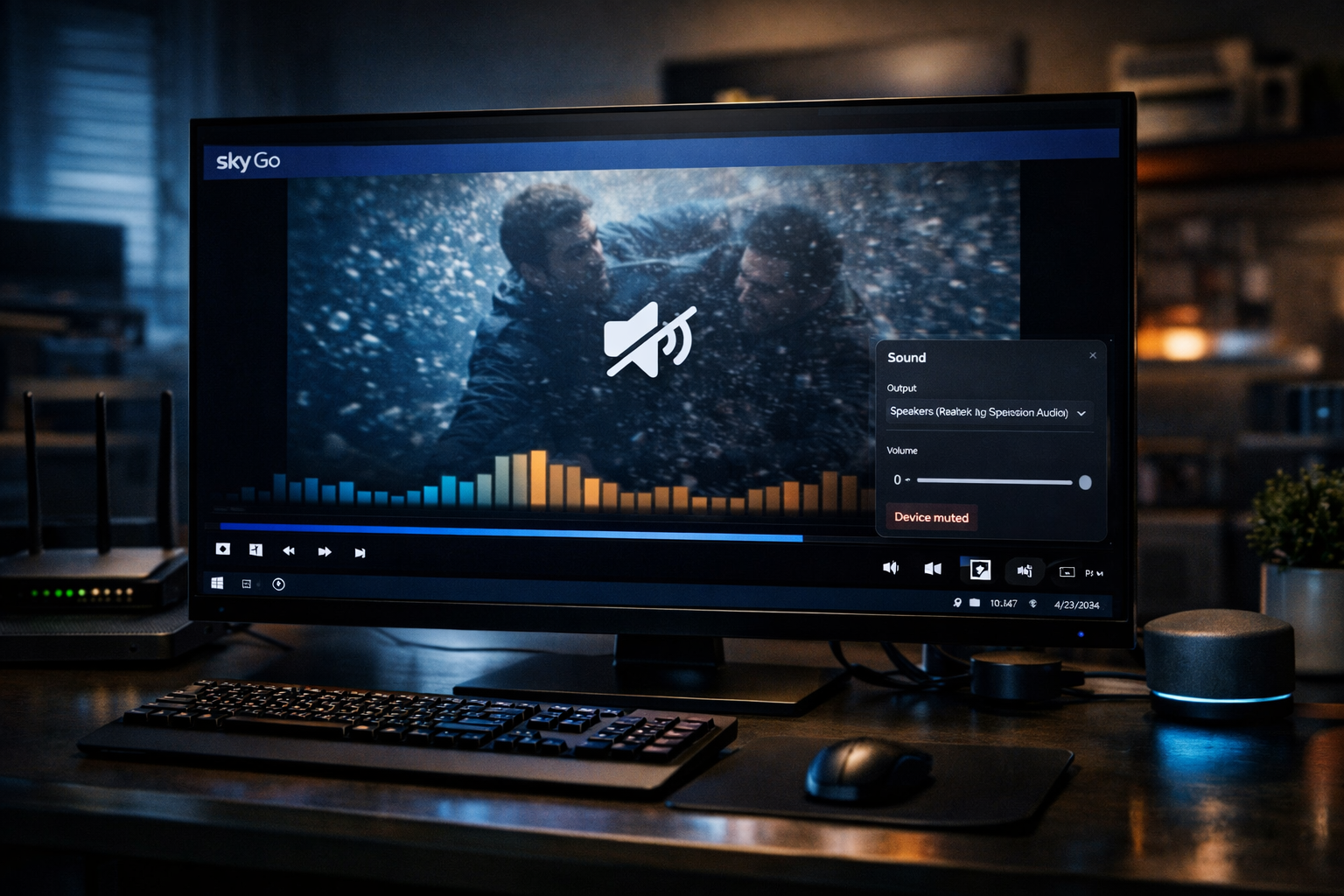
Sound problems in Sky Go on Windows 11 can appear in several forms. Sometimes there is no audio at all, sometimes the sound is delayed compared to the video, and in other cases the audio cuts in and out during playback. These issues can be confusing because the video often continues working normally while the audio behaves unpredictably.
Unlike traditional television where audio and video are delivered together through a fixed signal, streaming separates these components into digital streams that must be synchronized by the system. The application receives audio and video data separately, processes them, and then aligns them during playback. If any part of this process becomes unstable, sound problems can occur.
Quick Context
This guide explains why Sky Go sound problems occur on Windows 11 and how audio output settings decoding synchronization and system behavior affect playback.
- What audio problems mean in streaming
- How audio and video synchronization works
- Windows audio output selection
- Audio drivers and system processing
- Audio latency and delay
- Network influence on audio playback
- System load and audio performance
- External audio devices and switching
- How to diagnose sound issues
- Typical sound problem scenarios
- Reality Check
- Final Verdict
- Frequently Asked Questions
What audio problems mean in streaming
Audio issues in streaming do not always indicate a problem with the video itself. In many cases, the audio stream is either not reaching the output device correctly or is not being synchronized properly with the video.
Because streaming separates audio and video data, each must be processed independently before being combined during playback.
If the audio processing path fails while video continues, the viewer may see a working image with no sound.
This separation explains why sound problems can occur without affecting video playback.
How audio and video synchronization works
During streaming, audio and video data are delivered in parallel streams. The player must align these streams so that sound matches the visual content.
This alignment depends on timing information included in the stream. The system uses timestamps to ensure both streams remain synchronized.
If delays occur in processing either stream, synchronization may break. This results in audio being ahead of or behind the video.
Maintaining synchronization requires stable processing conditions.
Windows audio output selection
Windows 11 allows multiple audio output devices such as speakers, headphones, or external audio systems. The system must select the correct output device for the application.
If the wrong output device is selected, the application may appear to have no sound even though audio is being produced elsewhere.
Switching between devices while the application is running can also cause temporary audio interruptions.
Ensuring the correct output device is selected is a key step in diagnosing sound issues.
Audio drivers and system processing
Audio drivers control how sound is processed and delivered to output devices. If the driver is outdated or unstable, the system may fail to handle audio streams correctly.
Driver issues can lead to missing sound, distorted audio, or intermittent playback.
Since streaming relies on continuous audio processing, even small driver inconsistencies can affect playback quality.
Stable audio drivers are essential for reliable streaming performance.
Audio latency and delay
Latency refers to the delay between receiving audio data and playing it through speakers. In streaming, this delay must match the video timing.
If audio processing takes longer than video processing, sound may lag behind the image. If it is processed faster, audio may appear ahead.
Latency differences often become noticeable during dialogue or fast moving scenes.
Consistent processing speed helps maintain proper synchronization.
Network influence on audio playback
Network conditions primarily affect video buffering, but they can also influence audio indirectly. If the stream delivery becomes unstable, the player may struggle to maintain synchronization.
In some cases, the system prioritizes video playback and adjusts audio timing to compensate.
This may result in temporary desynchronization or audio glitches.
Stable network conditions help maintain consistent audio performance.
System load and audio performance
High system load can affect audio processing just as it affects video decoding. If the CPU is busy with other tasks, audio processing may be delayed.
This can lead to stuttering sound, delayed audio, or complete audio dropouts.
Background applications, updates, or heavy multitasking can increase system load.
Reducing system pressure often improves audio stability.
External audio devices and switching
External devices such as Bluetooth headphones or external speakers introduce additional processing layers. Wireless connections may introduce latency or occasional interruptions.
Switching between devices while streaming can also disrupt audio output temporarily.
Some devices may require additional time to synchronize with the system, causing short delays.
Testing playback with different devices can help identify whether external hardware is involved.
How to diagnose sound issues
To diagnose sound problems, first determine whether audio is completely missing or simply out of sync. If there is no sound, output selection or driver issues are likely.
If audio is present but delayed, synchronization or latency may be the cause.
If sound cuts in and out, system load or device switching may be involved.
Observing when the problem occurs helps identify the underlying cause.
Typical sound problem scenarios
| Scenario | Cause | Explanation |
|---|---|---|
| No sound at all | Wrong output device | Audio routed to another device |
| Audio delayed | Processing latency | System struggling to sync streams |
| Sound cuts in and out | System load | CPU unable to process audio smoothly |
| Audio only on some channels | Stream variation | Different encoding profiles |
Reality Check
Most Sky Go sound problems on Windows 11 originate from system level audio handling or synchronization issues rather than faults in the streaming service itself.
Final Verdict
Final Verdict
Sound issues in Sky Go on Windows 11 occur when audio processing, synchronization, or output handling becomes unstable. Factors such as system load, audio drivers, device configuration, and network conditions all influence audio performance. Understanding how streaming audio works helps viewers identify the source of the problem and maintain stable synchronized playback.
Frequently Asked Questions
| Question | Answer |
|---|---|
| Why is there no sound on Sky Go | This is often caused by incorrect audio output selection or driver issues. |
| Why is audio not synchronized with video | This happens when audio and video streams are processed at different speeds. |
| Can system performance affect audio | Yes. High CPU usage can delay audio processing. |
| Do external devices affect sound quality | Yes. Bluetooth and external devices can introduce latency or interruptions. |